"Free up space" does not have to mean "delete memories". Here are seven ways to get gigabytes back, with what each one really does.
1. Turn on Optimize iPhone Storage
If you use iCloud Photos, go to Settings › [your name] › iCloud › Photos and choose Optimize iPhone Storage. Your iPhone keeps smaller versions and the full originals stay in iCloud. It needs enough iCloud storage for your whole library.
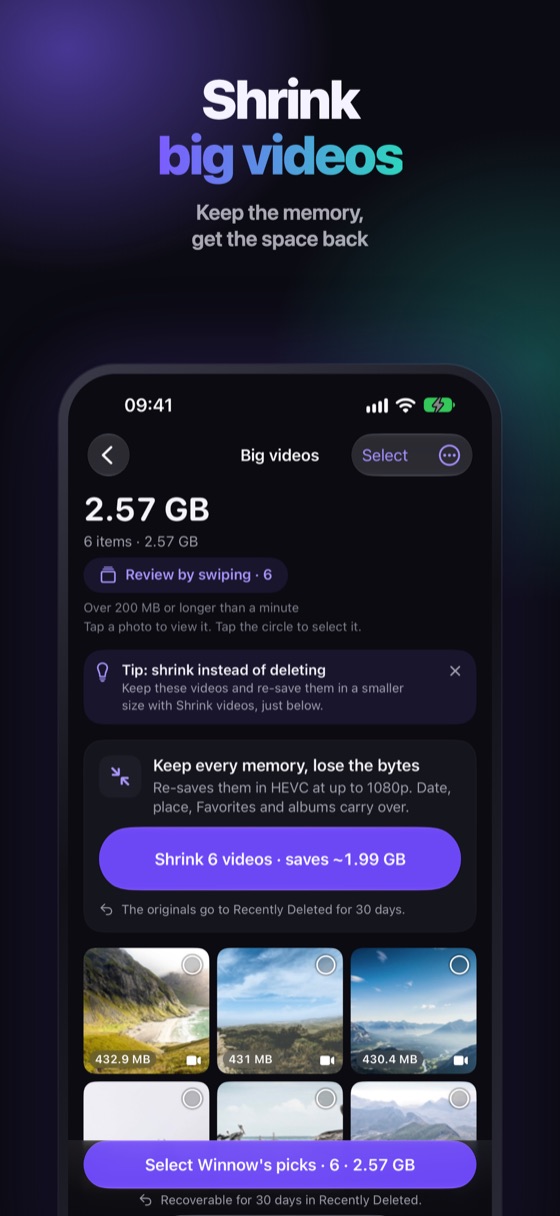
2. Shrink big videos instead of deleting them
Videos are the heaviest thing on most iPhones: a 10-minute 4K 60 fps clip is around 4 GB. A smaller copy of the same video keeps the memory for a fraction of the space. This is where the most space comes back, and nothing is lost from your point of view.
3. Offload apps you don't use
In iPhone Storage, tap an app and choose Offload App. The app goes, its documents and data stay, and reinstalling puts everything back. You can also turn on offloading of unused apps automatically in the App Store settings.
4. Trim Messages attachments
In iPhone Storage › Messages you can review large attachments and remove the ones you no longer need. Old group chats hold many photos and videos that already live in someone's camera roll.
5. Turn Live Photos into stills
A Live Photo stores a short clip along with the picture. If you only care about the picture, keeping a still saves the clip's space on each one.
6. Clear Safari and app caches
Settings › Safari › Clear History and Website Data frees browser storage. Some apps also have a clear-cache option in their own settings.
7. Record smaller from now on
In Settings › Camera › Formats choose High Efficiency so photos and videos take less space, and in Record Video use 1080p or 4K at 30 fps unless you need more.
Free tool: the storage calculator shows how many GB your photos and videos take, and what changes if you shoot 4K at 30 instead of 60 fps.
Shrink videos and Live Photos with Winnow
Winnow Pro's Shrink videos makes smaller copies that keep the date, place and albums, and Live Photos → stills keeps the photo and drops the motion. Everything runs on your iPhone, nothing is uploaded, and the Clean tab shows the real space you can free before you delete anything.
FAQ
Can I free up iPhone storage without deleting photos?
Yes: optimize photos with iCloud, shrink big videos, offload unused apps, trim Messages attachments, turn Live Photos into stills and clear caches.
Does Optimize iPhone Storage delete my photos?
No. Smaller versions stay on the iPhone and the originals stay in iCloud, as long as you have enough iCloud storage.
Is shrinking a video the same as deleting it?
No. You keep the video at a smaller size. Winnow keeps its date, place and albums.